Ten iPhone automations that help you use your phone less
The best iPhone automations for using your phone less run on their own: a Focus at bedtime, a pause when a feed app opens, a reminder when you plug in at night. Each uses a trigger from the Shortcuts app, runs without asking, and takes about two minutes to set up.
Coming soon to iPhone
What makes a good automation for this?
The best ones act before you decide. They fire from a time, a place or an app opening, and they ask for little. Apple lists the available triggers in its guide on setting triggers, and they include time of day, arriving and leaving a place, a charger, a Focus and opening an app.
Keep each automation small. One trigger, one or two actions. Complex chains fail more often and are harder to fix. If you need help with a misbehaving automation, see the checklist for automations that do not run.
Which ten are worth trying?
| Idea | Trigger | Action |
|---|---|---|
| 1. Pause before a feed | App is opened | Run a pause such as Ebb Gate or Show Alert |
| 2. Wind-down Focus | Time of day, 22:00 | Set a Focus that mutes social apps |
| 3. Charger reminder | Charger connected after 21:00 | Show a note to leave the phone across the room |
| 4. Morning start | Sleep Focus turns off | Open a note or a book app instead of a feed |
| 5. Work hours | Arrive at work | Turn on a Work Focus |
| 6. Home hours | Arrive home | Turn on a Personal Focus with fewer apps |
| 7. Car mode | CarPlay connects | Turn on a driving Focus |
| 8. Dimmer evening | Time of day, sunset | Lower the brightness |
| 9. Weekend pause | Time of day, Saturday morning | Show a prompt for one non-screen plan |
| 10. Low battery calm | Battery level falls | Turn on Low Power Mode |
Idea 1: Put a pause before a feed
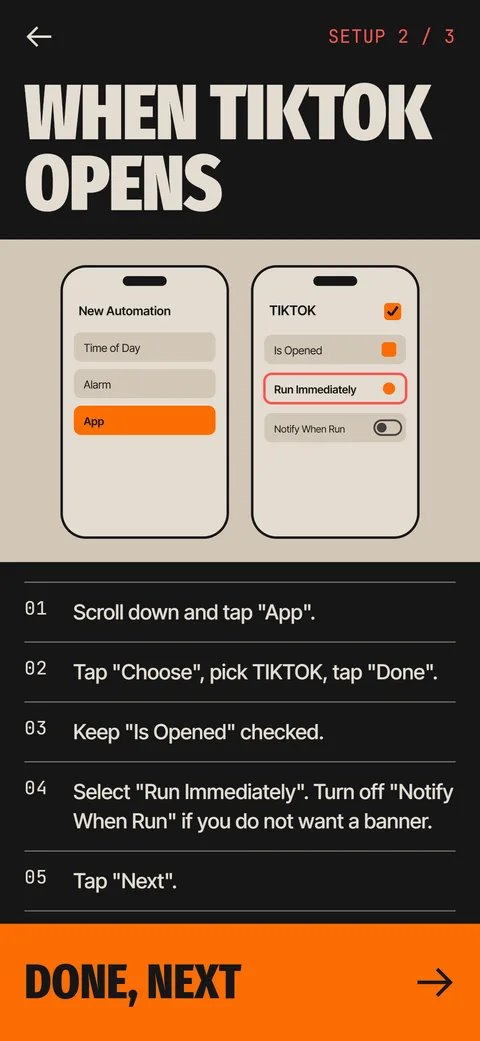
This is the strongest of the ten, because it catches the start of the habit. Use the App trigger with Is Opened, pick the feed app and choose Run Immediately. A plain Show Alert saying "Do you want this?" works for a few days. A pause that asks for something, such as a short game, lasts longer. Ebb, an iPhone app in development, supplies one through its Ebb Gate action.
Ideas 2 to 4: Protect the night and the morning
Phones do the most damage at the edges of the day. A scheduled Focus at 22:00 mutes the apps that pull you in. A charger trigger after 21:00 can show a short note, such as "Phone stays outside the bedroom tonight". A morning automation that opens a note or a book app gives your first minutes a different default. The guide to scrolling in bed goes deeper on the night.
Ideas 5 to 7: Let places do the work
Arrive and leave triggers use your location, so they work without you remembering. A Work Focus keeps feeds out of your working hours, and a Personal Focus at home can hide work apps. CarPlay triggers a driving Focus. All three save you from deciding each time.
Ideas 8 to 10: Make the phone less interesting
A dimmer screen in the evening makes bright feeds less inviting. A weekend morning prompt asks for one plan that does not involve a screen. A low battery trigger that switches on Low Power Mode quietly slows some background activity. None of these will cure a habit, but they tilt the room.
How should you set them up?
Add one automation per week. A phone full of new rules in one afternoon will feel hostile, and you will turn them all off. Use the same steps each time: open Shortcuts, tap Automation, tap the plus button, choose the trigger, add the actions, pick Run Immediately and test.
Test right away. Trigger the event once and watch what happens. If the result is wrong, change it while the setup is still fresh in your head.
What should you avoid?
Avoid anything that locks you out of essential apps, because you will remove the automation the first time you need a map. Avoid rules that fire all day, such as a banner every time you wake the phone. And avoid relying on a single trick. Combine one early pause with one late Focus and one notification change.
Shortcuts automations are not a lock. You can always turn them off, and that is by design. They work because most urges pass in the few seconds a pause creates.
How do you keep a set of automations tidy?
Name each automation by its purpose, not by its trigger. Names like Evening wind-down or Feed pause are easy to find when you want to change something. Keep the list short, and review it every month. Delete anything you have not noticed in thirty days, because a rule you do not feel is noise.
Group them by time of day in your head: morning, work, evening, night. If two automations fire at the same moment, one may override the other, so check the order in which they run. A short list with clear jobs is easier to debug than a long one.
Which one gives the biggest return?
For most people, it is idea 1, a pause before a feed opens. A feed is where the minutes go, and a pause is the cheapest way to interrupt the start of a session. The night Focus comes second, because late scrolling hurts the next day. Start with those two and add the rest only if you feel a gap.
How do you know an automation is working?
Look at the effect, not at the rule. Check your Screen Time weekly average and your pickups after two weeks. If nothing moves, the pause may be too easy to dismiss, and you should make it ask for a little more effort. If the average drops, leave it alone and add nothing for a month. Stable systems beat clever ones.
What about people who share a phone or a family plan?
Automations live on one device and run for whoever holds it. If you share a phone, keep rules that act on you only, such as a pause before a specific app, and avoid ones that change system behavior for everyone. On a family plan, Screen Time and Downtime are the better tools for children, because a parent can manage them from another device.
Can automations replace willpower?
No, and they should not try. They replace decisions, which is a different thing. Willpower is spent at the moment of temptation, when you are tired and the phone is in your hand. An automation moves some of that work to a calm moment earlier in the day, when you set it up. That is the real benefit: a better version of you made the rule, and the later you only has to leave it alone.
Frequently asked questions
What are good iPhone automations to reduce phone use?
A pause when a feed app opens, a bedtime Focus, a charger reminder at night and a Focus tied to work and home.
Can an automation run when I open a specific app?
Yes. Use the App trigger, choose the app, tick Is Opened and select Run Immediately.
Can Shortcuts block an app?
Not as a lock. An automation can show a prompt or run an action when an app opens, but you can still dismiss it or remove it.
How many automations should I start with?
One or two. Add another each week once the first feels normal.
Do iPhone automations need internet?
Many do not. Triggers like time of day, charger and app open run on the device.
Keep exploring
 How to Run an iPhone Shortcut When an App OpensThe App trigger in Shortcuts, step by step, with the settings that matter and what to do when it flashes.The Ebb GateA Shortcuts automation opens Ebb first. Pass the round, then pick 5, 10 or 15 minutes.How to Stop DoomscrollingSeven steps that add friction before the feed opens, with sources and a table of what works.