Screen Time Ignore Limit: why limits fail and what to try
iPhone Screen Time limits fail for many people because the limit screen offers an Ignore Limit button, and tapping it takes one second. You can make a limit stricter with a Screen Time passcode, but a limit still acts late. A pause that appears before the app opens catches the urge earlier.
Coming soon to iPhone
Why can you ignore a Screen Time limit?
When you reach an App Limit, iOS shows a screen that lets you ignore the limit. The choices are to be reminded in 15 minutes or to ignore the limit for the rest of the day. Apple designed this so a limit is a prompt and not a hard stop, which suits many people and fails the people who set the limit to stop themselves.
In widely read online threads, people describe sliding from one more minute to 15 more to switching the limit off for the day. That is anecdote, not a study, but it matches how limits often go: they ask you to refuse at the moment you are least able to.
The deeper issue is timing. The ignore prompt arrives when your thumb is already moving, and the cost of saying yes is one tap. The cost of saying no is to put the phone down in the middle of something that was designed to continue. Any plan that depends on winning that moment every day will lose some days.
How do you make a Screen Time limit harder to ignore?
Set a Screen Time passcode, and make it something you do not know or cannot guess easily. Many people hand it to a friend or partner. With a passcode in place, iOS offers a setting called Block at End of Limit, which stops the app until the passcode is entered. People on the thread above report that this setting only shows up after a passcode exists, and that Apple Support could not point them to it, so check your iOS version.
- Open Settings, then Screen Time.
- Turn on a Screen Time passcode, and have someone else choose it if you can.
- Open App Limits and choose or edit a limit.
- Look for Block at End of Limit and switch it on.
- Check that the passcode is saved by the other person, not by you.
What are the weaknesses of a hard limit?
A limit triggers after the minutes are gone. By then you are in the feed, and the urge to open it has long been satisfied, so the stop feels like a punishment. Limits count time and not the number of times you open an app, so ten openings of one minute each look harmless. A passcode held by a partner helps only if the partner agrees to the role, and it can strain the relationship.
There is a plain limit to every blocker on your own phone: if you really want in, you can find a way, so the useful ones work with your intent and not against it.
A strict limit can also backfire. If a limit blocks a messaging app you need for work or family, you will disable it for good after the first inconvenience, and a disabled limit protects nothing. Choose the apps that really cause trouble, and leave the useful ones alone.
What if you want a pause before the app opens?
A pause at the start catches the habit at its cheapest point. On iPhone, you can use a Shortcuts automation that runs when an app opens. The guide to this is in how to run a Shortcut when an app opens. The pause can be anything, from a breathing prompt to a small game.
Ebb is built around this idea. It adds a focus round before social and short-video apps, with passes that cost more through the day on Pro. It makes no claim to block anything, and you can delete the automation whenever you want. See the gate.
Who should use a passcode and who should not?
A passcode held by someone else suits people who know that they will override any limit set by themselves, and who have a person they trust to hold it. It is a strong tool, and it moves part of your self-control to another person, which is not for everyone.
If you do not want that arrangement, a pause before the app opens is the milder choice. It gives you a moment to reconsider and leaves the final decision with you. The cost is that it is easier to switch off, so it works best when you really want to cut back.
Many people use both: a modest Screen Time limit as a backstop for the worst hours, and a pause at the start for every opening. The two do not conflict, since Ebb does not read or change Screen Time.
How do you choose which apps get a limit?
Start with the one or two apps where you lose time you regret, and leave the rest alone. A limit on ten apps becomes background noise within a week, and you will start tapping Ignore Limit on all of them out of habit. A narrow rule stays meaningful because every time it fires, it is about something you chose.
A simple test helps. Look at your week in Settings, Screen Time, and find the apps where you opened the phone for something else and ended up there. Those are the candidates. Apps you open on purpose, such as maps or a banking app, do not need a limit at all.
- List the two apps you most regret time on.
- Give each its own limit, not a shared category limit.
- Choose a daily time you could keep on a bad day.
- Decide in advance who holds the passcode, if anyone.
- Review after seven days and adjust one thing only.
How do the options compare?
Each option has a different moment of action and a different escape.
The table shows why no single option wins. The ones that act late are easy to ignore, and the ones that act early are easy to switch off. Pick the pair whose weak points do not overlap, and revisit the choice after a month.
| Option | When it acts | How you get around it |
|---|---|---|
| App Limit with Ignore Limit | After the time is used | Tap Ignore Limit |
| App Limit with passcode and block | After the time is used | Ask for the passcode or change the settings |
| Downtime | At a set schedule | Ignore or end it, depending on settings |
| Pause before the app opens | At every opening | Turn the automation off |
| Deleting the app | Permanently | Reinstall it |
What works for self-control without a lock?
Combine two things. Put friction at the start, so that opening the app takes a short, deliberate effort. And give yourself a replacement for the next two minutes, such as a few pages of a book or a short walk. Ebb's Instead suggests three such options at the gate.
Then watch how often you turn back, and not only the minutes. Turning back, rather than total time, is the number that shows the habit changing. For a longer plan, see how to stop doomscrolling.
Review the setup once a week. If you keep tapping through the pause, make it harder: lengthen the round, shorten the time window or add a night rule. If you never see the pause at all, check that the automation is still on. The aim is for the friction to stay slightly annoying, without becoming so heavy that you remove it.
Does Ebb read your Screen Time?
No. Ebb does not use Apple's Screen Time APIs, which also keeps it simple to review and keeps your data on your phone. The only Screen Time number in the app is the one you type in during onboarding and in a weekly check-in, and it is labeled as self-reported in the Scroll Receipt.
This is a deliberate trade. Reading real usage would give better numbers, but it would also need entitlements and permissions that Ebb prefers to avoid. A number you type in is rougher and fully under your control.
Frequently asked questions
How do I stop being able to ignore a Screen Time limit?
Set a Screen Time passcode that someone else keeps, then turn on Block at End of Limit for the app limit. The option can appear only after a passcode exists.
Can someone else set my Screen Time passcode?
Yes. A friend or partner can type it in so that you do not know it. Make sure they agree to be the person who holds it.
Is there an alternative to Screen Time limits?
A pause that runs before an app opens, built with Shortcuts, adds friction earlier. Ebb is an app for this idea and is in development.
Does Ebb replace Screen Time?
No. Ebb does not read or change Screen Time. It runs its own gate when an app opens.
Keep exploring
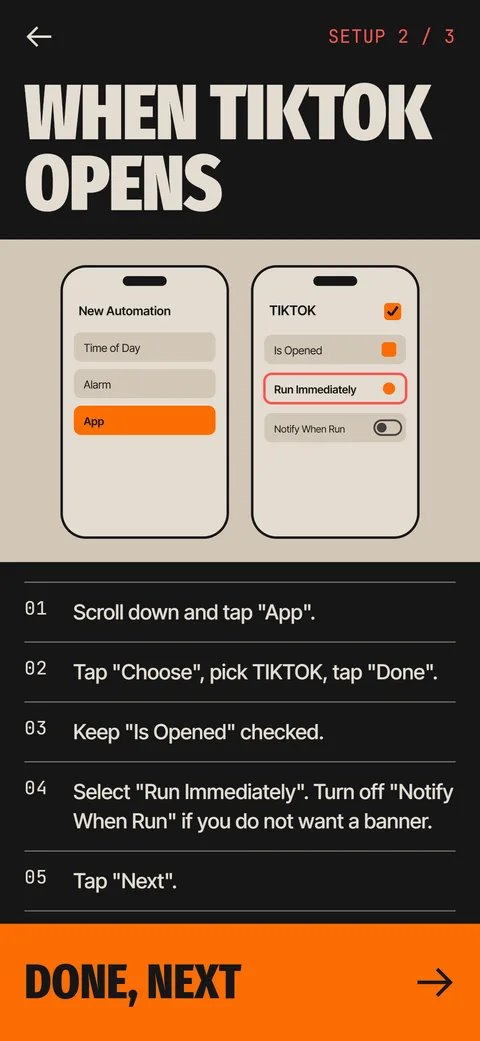 How to Run an iPhone Shortcut When an App OpensThe App trigger in Shortcuts, step by step, with the settings that matter and what to do when it flashes.The Ebb GateA Shortcuts automation opens Ebb first. Pass the round, then pick 5, 10 or 15 minutes.
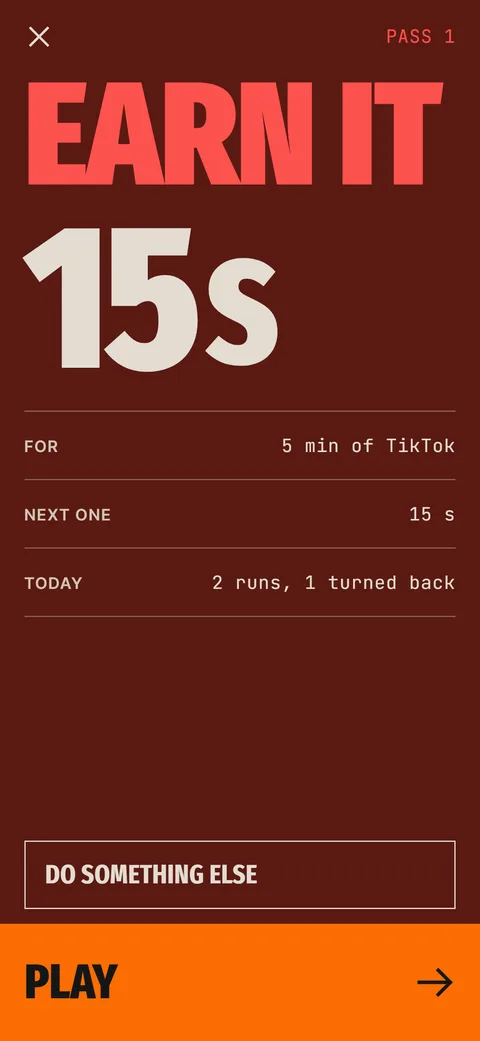 Ebb Pass CostsRounds of 15, 30 and 60 seconds, a daily pass limit and optional Morning and Night rules.