
How to lock apps on iPhone: three built-in ways and their limits
On iOS 18 or later, touch and hold an app icon, tap Require Face ID, and confirm. You can also hide the app, which moves it to a locked Hidden folder. For a time limit, use Screen Time App Limits with a passcode. Each method stops a different problem, so pick the one that fits.
Coming soon to iPhone
What does locking an app mean on iPhone?
There are three different problems that people call locking. One is privacy: stopping others from opening an app on your phone. One is time: stopping yourself after a limit. And one is friction: making yourself wait before an app opens. iPhone has a tool for each, and they are not interchangeable.
Face ID locks are for privacy. Screen Time is for time. A pause before the app is for friction. Choose by the problem you actually have.
How do you lock an app with Face ID?
Apple added app locking and hiding in iOS 18. The steps are in the iPhone User Guide, in the section on how to lock or hide an app. In short:
Notifications for a locked app may show less content. The lock protects against someone holding your phone after you have opened it. It does not protect against you, since you pass the check every time.
- Touch and hold the app icon on the Home Screen.
- Tap Require Face ID (or Touch ID or passcode, depending on your device).
- Confirm. From now on, opening the app needs authentication.
How do you hide an app?
The same menu offers a Hide and Require Face ID option. The app disappears from the Home Screen and moves to a Hidden folder at the bottom of the App Library, which is itself protected. Hidden apps do not appear in search or notifications in the usual way.
Hiding is good when privacy is the goal. If you want to stop opening an app, hiding adds a small bit of friction, but you know where it is, and the folder is one tap and a face scan away.
How do you limit an app with Screen Time?
For time limits, use Screen Time. Go to Settings, Screen Time, App Limits, Add Limit, pick the app and set the time. The steps are in the guide to schedules and time allowances. Add a passcode to make the limit harder to ignore. The practical details are in the post on Screen Time and the Ignore Limit button.
Which method helps with scrolling?
Face ID locks do little. A Face ID check takes less than a second, and once you are in, nothing stops the feed. It only changes who can open the app.
Screen Time limits help with total time, if you hold the passcode back from yourself. They act late, after you have spent the minutes.
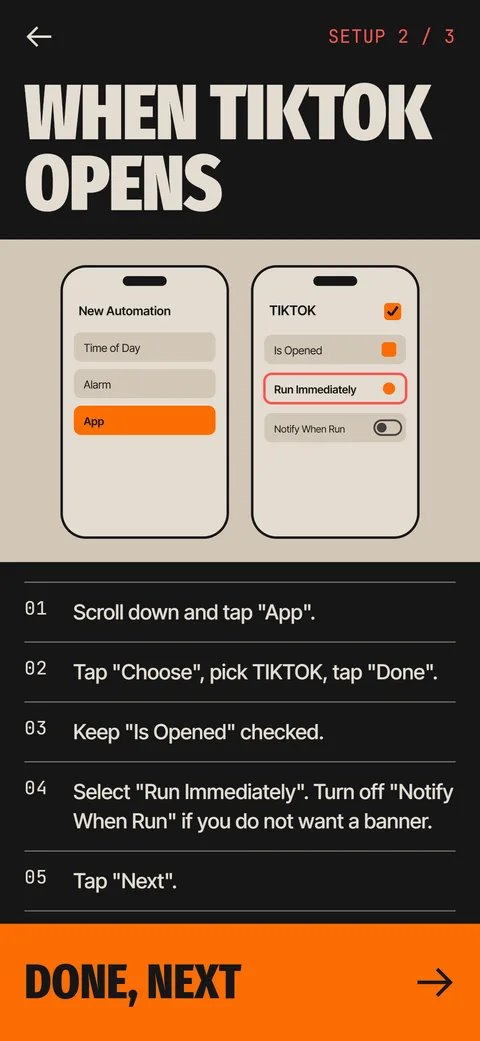
A pause at launch helps with the reflex. A Shortcuts automation can run an action when the app opens. Ebb, an iPhone app in development, uses that trigger to run a 15-second focus round before the app opens. See the gate. Ebb is a speed bump and not a lock: it cannot stop you from removing it.
Can you lock the whole phone to one app?
Yes, with Guided Access, which limits the iPhone to a single app and can disable parts of the screen. It is built for situations like handing the phone to a child or running a kiosk. It does not suit daily self-control, because ending it needs a passcode that you know.
What if your iPhone is older?
The Face ID app lock needs iOS 18 or later. On older versions you can limit apps with Screen Time, and you can restrict content and purchases under Content and Privacy Restrictions. Third-party lock apps exist, but check what permissions they ask for before you install one, since some request broad access.
Which combination is sensible?
For privacy on a shared device: Face ID lock or hide. For heavy use of one app: App Limits with a passcode someone else holds. For the reflex to open feeds: a pause at launch. Many people combine a limit with a pause, because one acts at the start and the other at the end.
What happens to notifications for a locked app?
Notifications from a locked app may show less detail on the Lock Screen, and hidden apps stop showing notifications in the usual places. If privacy is your goal, check how your messages look on a locked screen after you set the lock. Apple's guide explains the exact behavior for each option.
Is there a way to lock apps for a child?
Yes. Use Screen Time under Family Sharing. A parent can set limits, schedules and content restrictions from their own device, and the child cannot change them without the parent's passcode. This works better than any lock on the child's phone, because the child does not hold the key.
How do you remove a lock or a limit?
To remove a Face ID lock, touch and hold the app icon and choose Don't Require Face ID. To remove a hidden state, open the Hidden folder in the App Library, touch and hold the app and choose Don't Require Face ID. To remove an App Limit, go to Settings, Screen Time, App Limits, tap the limit and delete it. If you set a Screen Time passcode, you will need it.
What is the difference at a glance?
| Method | Protects against | Helps with scrolling |
|---|---|---|
| Require Face ID | Other people opening the app | No |
| Hide and Require Face ID | Other people finding the app | A little |
| Screen Time App Limit | Total time in an app | Yes, late |
| Pause when the app opens | The reflex to open it | Yes, early |
Can apps still track you when they are locked?
A Face ID lock controls who can open the app. It does not change what the app does in the background or what permissions it has. To manage that, review the permissions under Settings, Privacy and Security, and the Tracking switch. Apple explains these controls in its guide to app tracking permissions. A lock is about access to the screen, and permissions are about access to your data.
When is a third-party lock app a bad idea?
Apps that promise to lock other apps often need broad permissions, including Screen Time access, and some ask for a subscription. Read what they request and what they collect before you install. For most people the built-in tools do the same job without adding another company that sees your habits. If you still want one, pick an app that works on the device and does not require an account.
What if you forget the Screen Time passcode?
Apple provides a way to reset it using your Apple Account details on recent versions of iOS. If you set the passcode with a friend on purpose, you will have to ask them. The point of that arrangement is that you cannot change your mind in a weak moment. Write the plan down first so that both of you know how and when the code may be shared.
Frequently asked questions
How do I lock an app on iPhone?
On iOS 18 or later, touch and hold the app icon, tap Require Face ID and confirm.
How do I hide an app on iPhone?
Touch and hold the icon and choose Hide and Require Face ID. The app moves to a Hidden folder in the App Library.
Does a Face ID lock stop me from scrolling?
No. It stops other people from opening the app. You pass the check each time.
Can I put a password on an app on an older iPhone?
Not natively. Use Screen Time App Limits with a passcode, or Guided Access for single-app use.
Can Ebb lock an app?
No. Ebb adds a short focus round before an app opens and you can remove it at any time.
Keep exploring
 How to Run an iPhone Shortcut When an App OpensThe App trigger in Shortcuts, step by step, with the settings that matter and what to do when it flashes.